Who this is for: Complete beginners — you've heard about Claude Code but haven't installed it yet, or you're not sure what a "terminal" is. No coding experience required.
What you'll need:
- A computer (macOS, Windows, or Linux)
- An internet connection
- A Claude account (Pro, Max, Team, or Enterprise plan) or an Anthropic API key — sign up at claude.ai if you don't have one
If this feels intimidating — it's not. The terminal looks technical, but you're really just typing short English words and pressing Enter. Most people get through this setup in under 10 minutes. Once you clear this one hurdle, you can build websites, apps, automations, and more with Claude Code — just by describing what you want in plain language. Some coding familiarity helps, but Claude handles most of the heavy lifting.
What is a terminal?
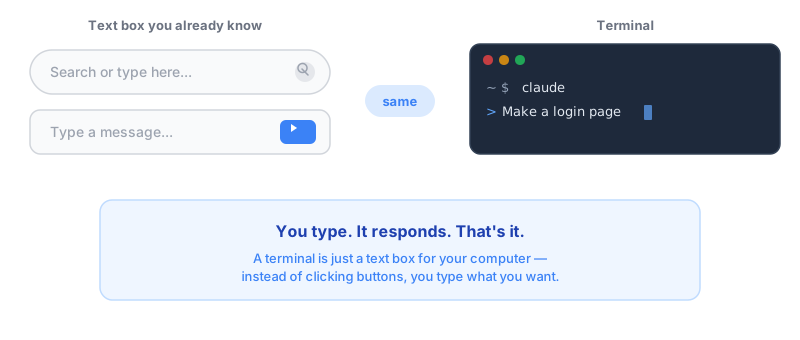
A terminal is a text-based way to talk to your computer. Instead of clicking buttons and icons, you type commands and press Enter.
Every computer already has one built in:
- macOS: Open Terminal (search "Terminal" in Spotlight, or find it in Applications > Utilities)
- Windows: Open Windows Terminal or PowerShell (search "Terminal" in the Start menu)
- Linux: Open your distribution's terminal app (usually Ctrl+Alt+T)
When you open a terminal, you'll see a blinking cursor waiting for input. That's it — nothing scary. It's just a text box for your computer. (You might hear the word "shell" — that's just the program inside the terminal that reads your commands. You don't need to think about it.)
Your first terminal commands
Try these to get comfortable. Type each one and press Enter:
pwdThis prints your current location (folder). You'll see something like /Users/yourname or C:\Users\yourname.
lsThis lists files in your current folder. On Windows PowerShell, ls also works (it's an alias for Get-ChildItem).
mkdir my-projectThis creates a new folder called my-project. You just created a folder — without clicking anything.
cd my-projectThis moves you into that folder. cd stands for "change directory" (directory = folder).
That's the basics. You now know enough to use Claude Code.
Installing Claude Code
Claude Code is a command-line tool — you install it through the terminal, and you use it through the terminal.
Step 1: Install Node.js
Claude Code requires Node.js (version 18 or higher). Check if you already have it:
node --versionIf you see a version number like v20.11.0, you're good. If you see "command not found", install Node.js:
- macOS/Linux: Visit nodejs.org and download the LTS version, or use a package manager:
# macOS with Homebrew
brew install node

# Ubuntu/Debian (24.04+ includes Node 18)
sudo apt install nodejs npm
# On older Ubuntu versions, the default Node may be too old.
# Use NodeSource to get Node 18+: https://github.com/nodesource/distributions- Windows: Visit nodejs.org and download the LTS installer. Run it and follow the prompts.
Step 2: Install Claude Code
Once Node.js is ready, install Claude Code globally:
npm install -g @anthropic-ai/claude-codeThis downloads Claude Code and makes the claude command available everywhere on your system.
Verify it worked:
claude --versionYou should see a version number. If you do, Claude Code is installed.
Step 3: Log in
Run Claude Code for the first time:
claudeIt will ask you to authenticate. Follow the prompts — you'll log in with your Claude account (the same one you use at claude.ai). You need a Pro, Max, Team, or Enterprise plan — or an Anthropic API key.
What does the claude command do?
The claude command starts an interactive session where you can talk to Claude directly in your terminal. It's like chatting with Claude on the web, but with superpowers:
- Claude can read your files — it sees your code
- Claude can edit your files — it makes changes directly
- Claude can run commands — it executes shell commands for you
- Claude can use agents — specialized personas for different tasks
Basic usage
Start Claude Code in your project folder:
cd my-project
claude
You'll see a prompt where you can type requests:
> Create a simple index.html with a hello world pageClaude reads your folder, writes the file, and tells you what it did. That's it — you're using Claude Code.
One-shot mode
You can also give Claude a single task without entering the interactive session:
claude -p "What files are in this project?"The -p flag runs Claude in non-interactive mode — it prints the answer and exits.
Folder structure: where does everything go?
When people talk about "agents," "skills," and "hooks" in Claude Code, they're talking about files inside a .claude/ folder in your project:
my-project/
  .claude/
    agents/      ← agent persona files (.md)
    skills/      ← slash command workflows
    settings.json  ← hooks and configuration
  src/
  package.json
  ...
The .claude/ folder is how you customize Claude Code for your project. You don't need it to get started — Claude Code works fine without it. But when you're ready to level up, that's where the magic lives.
Common issues
"command not found: claude"
Claude Code isn't installed globally, or your PATH doesn't include npm's global bin folder.
Fix: Run npm install -g @anthropic-ai/claude-code again. If it still doesn't work, try:
npx @anthropic-ai/claude-code"command not found: node"
Node.js isn't installed. Go back to Step 1 and install it.
"permission denied"
On macOS/Linux, you may need to prefix the install command with sudo:
sudo npm install -g @anthropic-ai/claude-codeClaude asks for authentication every time
Make sure you completed the login step (claude → follow auth prompts). Your session token is saved locally so you only need to do this once.
What's next?
Now that you have Claude Code running, you can start building with it:
- What Are Claude Code Agents? — Learn how to give Claude specialized roles (product manager, developer, reviewer)
- Create Your First Skill — Build reusable slash commands in 5 minutes
- From Solo to Team — A practical upgrade path from single assistant to multi-agent team
- Free Starter Template — Get 4 agents and 5 skills, ready to use — no setup needed